OV Auto-Defect Creator Studio: Create Synthetic Training Data for Vision AI
Every AI vision system faces the same challenge: you cannot train a model to detect defects you do not have examples of. Rare defects, new product launches, and intermittent quality issues all create training data gaps that limit your inspection accuracy.
The OV Auto-Defect Creator Studio solves this problem by creating realistic synthetic defect images that can be used for model training. This powerful tool is part of the Overview Advanced GenAI Tools platform.
The Training Data Problem
AI defect detection models learn from examples. The more diverse and representative your training data, the better your model performs in production. But collecting real defect samples presents serious challenges:
Rare Defects
Some defects occur once in 10,000 parts. Waiting to collect enough samples could take months.
New Products
Launching a new product line means zero historical defect data to train with.
Process Changes
New suppliers, materials, or processes can introduce defect types you have never seen before.
Variant Coverage
A scratch on a black part looks different than on a silver part. You need samples of each.
Traditional approaches either accept lower accuracy during the ramp-up period or delay deployment until enough samples are collected. Neither option is acceptable in competitive manufacturing environments.
How the OV Auto-Defect Creator Studio Works
The OV Auto-Defect Creator Studio uses advanced generative AI to create realistic defect images that can augment your training data. It offers five specialized modes, each designed for different use cases:
Mode 1: Single Image Annotation
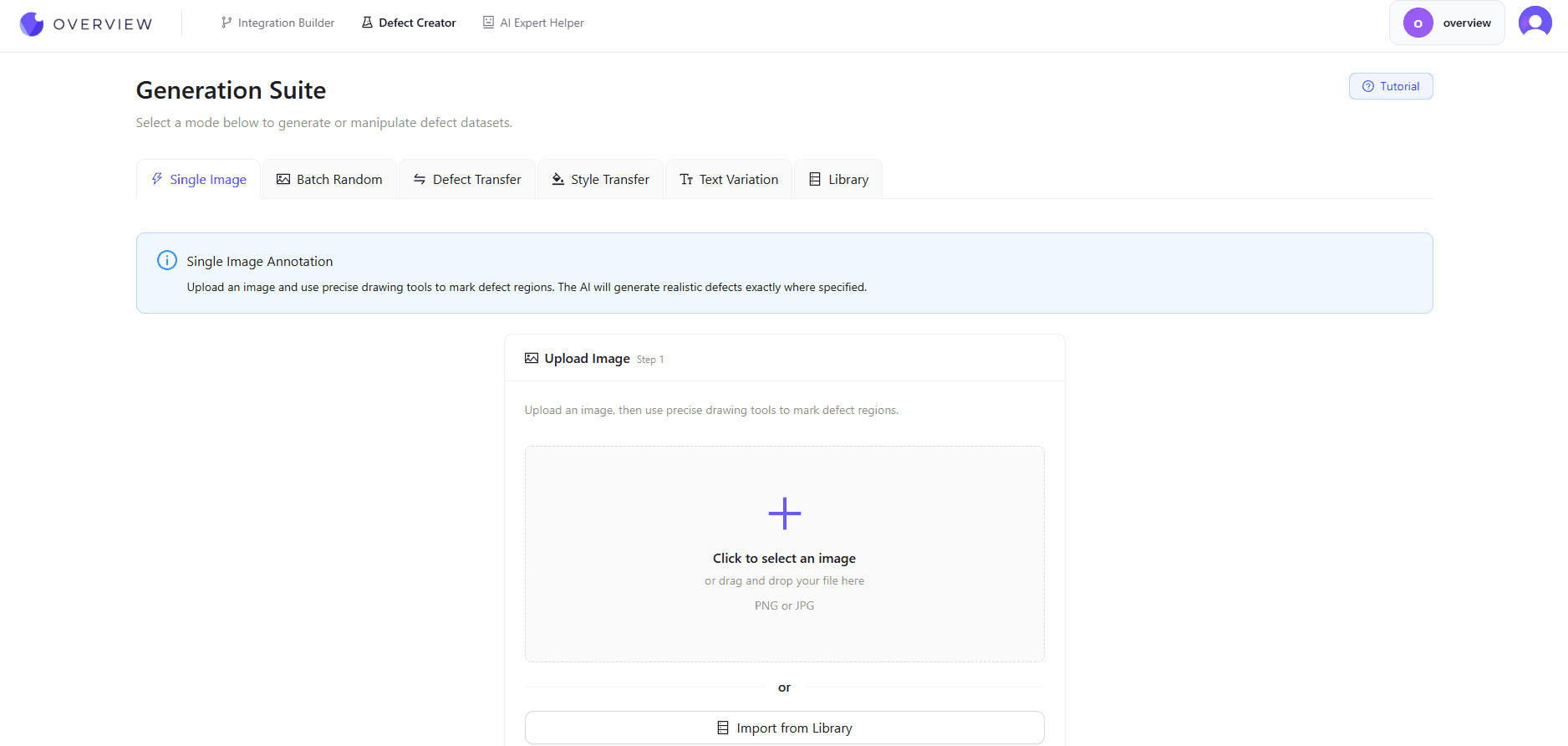
This mode gives you precise control over where defects appear. Upload an image of your product and use drawing tools to mark exactly where you want the AI to generate a defect.
How It Works:
- Upload a good part image
- Use brush, polygon, or rectangle tools to mark the defect region
- Specify the defect type (scratch, dent, discoloration, etc.)
- AI generates a realistic defect in the marked location
- Download the synthetic defect image for training
This mode is ideal when you need defects in specific locations, such as high-stress areas, weld zones, or critical surfaces where defects are most likely to occur.
Mode 2: Batch Random Generation
When you need volume, Batch Random Generation creates 6 images at once with defects placed in randomized locations. You can choose between "Auto Random" mode where AI picks the defect types, or "Precise Control" mode where you select specific defect types and quantities.
How It Works:
- Upload a reference image of a good part
- Choose Auto Random (AI picks defects) or Precise Control (you choose types)
- If using Precise Control, select from 20+ defect types including scratches, dents, cracks, and more
- AI generates 6 different defective versions with varied locations
- Review and download the batch
This mode excels at quickly building training data volume. The randomization ensures your model learns to detect defects anywhere on the part, not just in specific locations.
Mode 3: Defect Transfer
Have a few real defect samples? Defect Transfer lets you upload defective images alongside good images. The AI analyzes the characteristics of your actual defects and recreates similar ones on the good images with variations in location, size, and color intensity. This multiplies the value of each real defect image you collect.
How It Works:
- Upload up to 10 "bad" images containing real defects
- Upload up to 10 "good" images without defects
- AI identifies defect patterns from the bad images
- Transfers similar defects to good images with variations
- Each generated image gets defects in different locations, sizes, and intensities
This mode is perfect when you have limited real defect samples. One scratched part can become dozens of training images, each with the scratch in a different location.
Mode 4: Style Transfer
Manufacturing often involves product variants with different colors, materials, or finishes. Style Transfer takes a defective reference image and applies that defect style to multiple variant images while adapting to different colors, textures, and lighting conditions.
How It Works:
- Upload 1 defective reference image (example: wrinkled fabric on a blue car seat)
- Upload 1 to 20 variant images of the same product in different colors or materials
- AI transfers the defect style while adapting to each variant
- Handles different colors, materials, textures, and lighting automatically
Real-world examples include transferring a wrinkle from a blue fabric seat to red fabric, leather, or other finishes. Or transferring a scratch from one metal connector size to other sizes. This is invaluable for product families where you need training data across many variants.
Mode 5: Text Variation
Many manufacturing applications involve inspecting text, serial numbers, barcodes, or labels. The Text Variation mode automatically detects text in your images and generates variations with different characters while preserving the exact image condition.
How It Works:
- Upload an image containing text, serial numbers, or labels
- AI automatically finds and identifies text regions
- Generates variations with different characters
- Preserves the exact image condition, lighting, and quality
This mode is perfect for generating varied OCR training data. Instead of collecting thousands of images with different serial numbers, generate them synthetically from a handful of reference images.
Quality of Synthetic Defects
The value of synthetic training data depends entirely on how realistic the generated defects are. Our AI Defect Generator produces defects that:
- Match the visual characteristics of real defects on your specific materials
- Include appropriate lighting interactions (shadows, reflections, highlights)
- Respect surface texture and finish properties
- Vary naturally in size, shape, and severity
- Blend seamlessly with the surrounding surface
The result is training data that your AI model cannot distinguish from real defect images, which means the learned detection patterns transfer directly to production inspection.
Built-in Image Library
All your uploaded and generated images are automatically saved to a local library in your browser. This means:
- View all your images organized by type (uploaded, annotated, generated)
- Download individual images or in bulk
- Reuse annotated images across different modes with "Import from Library"
- No need to redraw annotations when reusing images in different modes
- Your data stays private since nothing is uploaded to servers permanently
Images are automatically resized to optimal resolution (1.6MP standard or 8.3MP high resolution) for best AI processing results.
Best Practices for Synthetic Training Data
Combine Synthetic with Real
Synthetic data works best when combined with whatever real defect samples you have. A training set with 50 real defects and 200 synthetic variations will typically outperform either 50 real or 250 synthetic alone.
Validate with Real Defects
Always validate your trained model against real defect samples, not synthetic ones. This ensures the patterns learned from synthetic data actually transfer to real-world detection.
Update as Real Data Arrives
As you collect real defect samples over time, retrain your models with the expanded dataset. Synthetic data gets you started quickly, but real data should progressively become a larger portion of your training set.
Vary Generation Parameters
Generate defects with varying severity levels, sizes, and characteristics. A model trained only on severe defects may miss subtle ones. Diversity in training data leads to robust detection.
Use Cases and Applications
New Product Launch
Deploy inspection on day one with synthetic defect data. No waiting for defects to occur naturally.
Rare Defect Detection
Multiply limited samples into comprehensive training sets for defects that rarely occur.
Proactive Quality
Train models for potential defects before they occur based on FMEA or process knowledge.
Variant Expansion
Extend inspection coverage to new product variants without collecting defects on each.
Getting Started
The OV Auto-Defect Creator Studio is available through the Advanced GenAI Tools platform. To request access:
- Visit the Advanced GenAI Tools page and click "Gain Access"
- Describe your use case and training data challenges
- Receive credentials and get started
- Start generating synthetic defects immediately
Stop letting training data scarcity limit your inspection accuracy. The OV Auto-Defect Creator Studio gives you the ability to create the training data you need, when you need it.
Solve Your Training Data Problem
Generate realistic synthetic defects and accelerate your AI model deployment. Visit the Advanced GenAI Tools page to request access and get started.
Request Access