
 OV Fleet
Manage your whole camera fleet from one screen
See which cameras are online, which recipes they’re running, and which software versions they use. Group cameras by inspection and apply supported changes to several at once.
What you can do with OV Fleet
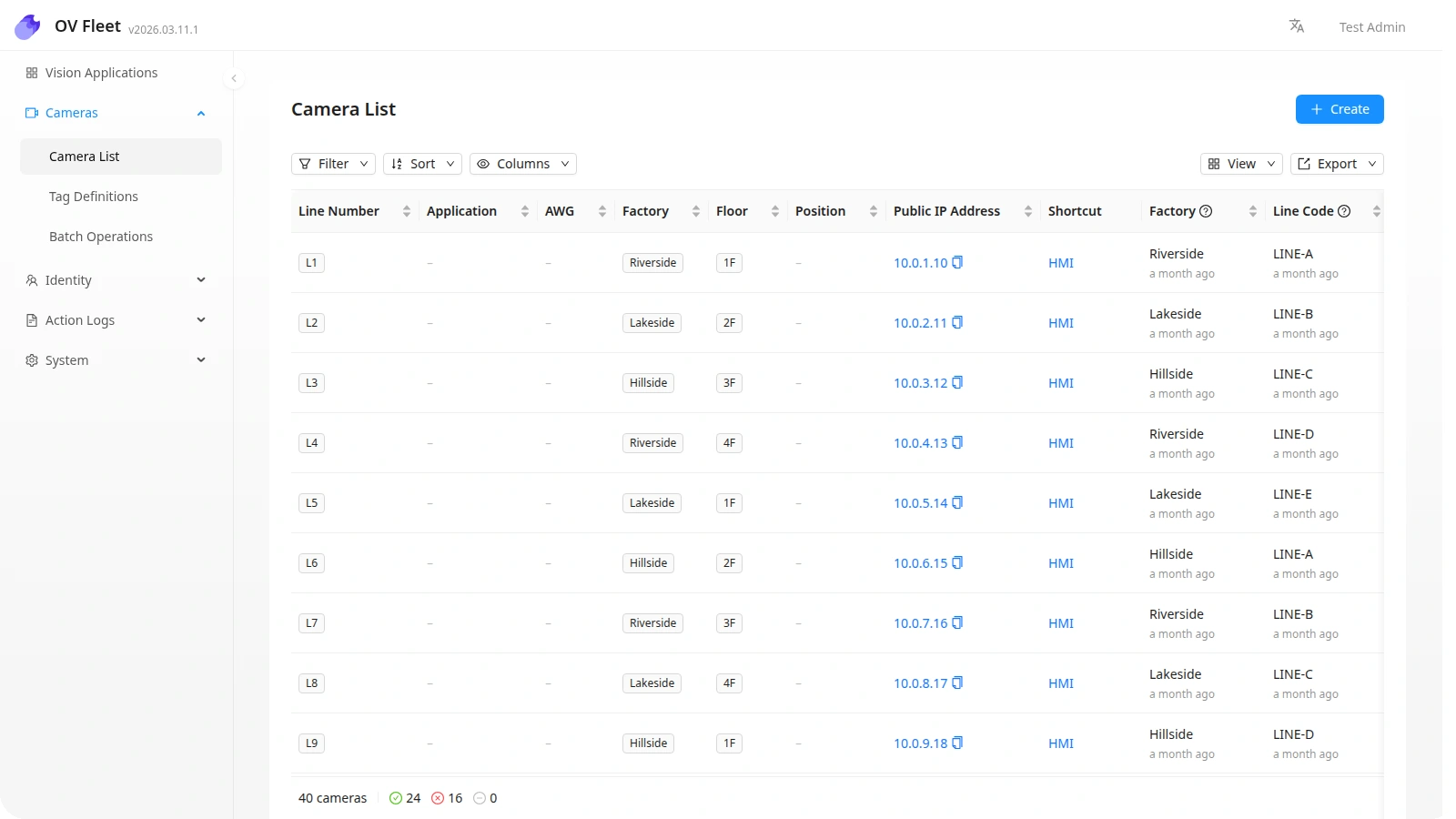
Camera inventory
Search and filter by connection state, tags, active recipe, or software version. Choose which columns your team needs to see.
Camera health and history
See current reachability and review a camera’s connection timeline and change history.
Vision applications
Group cameras that work on the same inspection so the team can find related devices together.
Batch operations
Target a group of cameras for supported recipe and settings changes. Review which devices are ready before you run the operation.
Roles and teams
Assign administrator, engineer, or operator access and group users by team.
Action logs and updates
Review who changed what and when. Apply Fleet software updates through the browser and check their status in the update history.
How teams use OV Fleet
Find the cameras running an inspection, review their status, and target the right group for a batch operation. Check the action history when you need to know what changed.
See all OV Pro Tools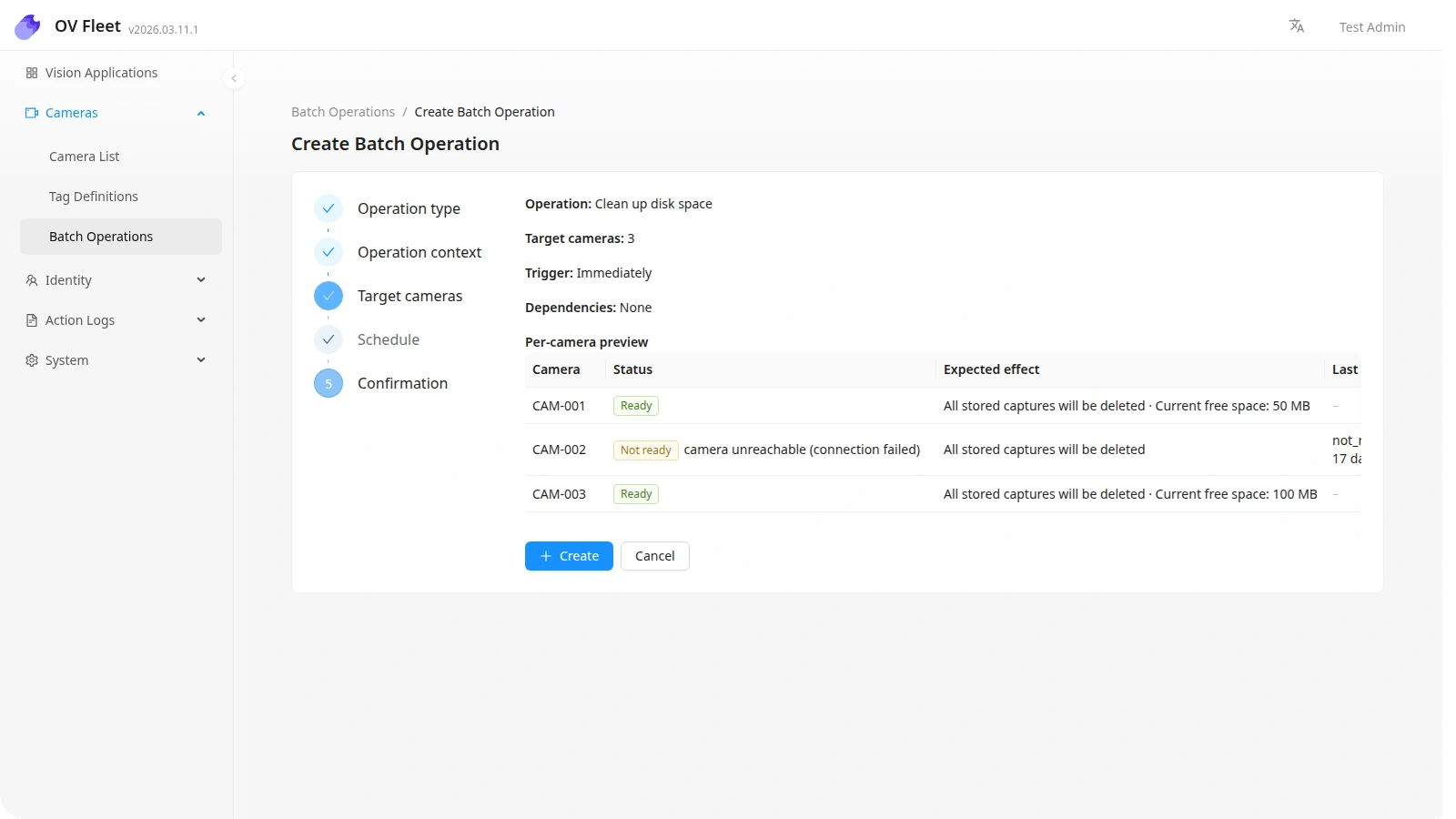
Discuss OV Fleet with our team
Tell us about your cameras, inspection workflows, and sites.